Inhaltsverzeichnis
Sending Mailings with SoSci Survey
If you would like to send mailings, you can create them either directly with SoSci Survey or with an external program. This manual describes how to create mailings with SoSci Survey. You will find further general steps and notes in the parent chapter Send Mailings.
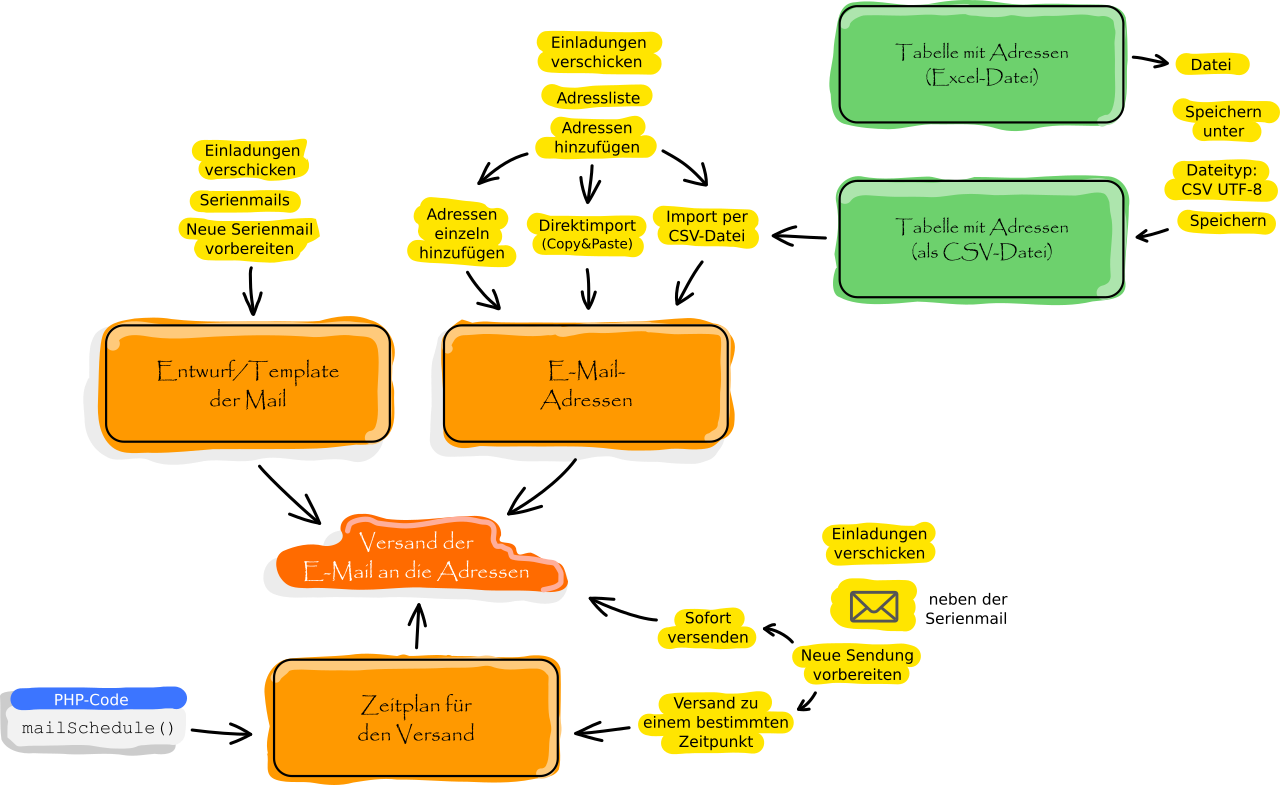
Sending an invitation mail by means of SoSci Survey is done under Invitation Mailings in three steps:
- Importing email addresses (if necessary with names for a personalized salutation)
- Creating the mailing (content of the email and, if necessary, specifying the questionnaire)
- Scheduling the dispatch for a later point in time or sending it immediately
The order of the steps is flexible. It is only important that all three components for sending the mailing are present – i.e., an email template (mailing), a list of contacts, and a trigger for the dispatch.
Notes
Important: If you send mailings by means of SoSci Survey, set Mailing as the access restriction in the questionnaire. Then, access is only possible once (unless set otherwise in the mailing) and only with the personalized links from the invitation mail.
Important: In the mailing, use the placeholder %link% for the questionnaire link and do not enter the link to the questionnaire directly. This ensures that personalized participation links are sent.
Important: Email addresses are personal data. If you would like to send mailings via SoSci Survey, you therefore first have to conclude a data processing agreement (DPA, see Personal Data). To do so, you have to enter the data of your responsible institution or your own data and, after creating it, click on the line highlighted in yellow in the agreement. Only then is the DPA confirmed and you can start creating the mailings.
Important: The function for sending emails is not enabled automatically on www.soscisurvey.de (except for user accounts that were registered with certain university email addresses). An individual activation is meant to prevent bad people from misusing SoSci Survey for sending spam. If the dispatch has not been enabled for your user account yet, SoSci Survey displays a corresponding application form instead of the dispatch option.
Tip: Before sending, go through the Checklist for Mailings to avoid errors during the dispatch.
Tip: If mailings do not arrive, read Serial mails do not arrive.
Tip: If you would like to create valid personalized links without sending an email, you can use the function API access for personalized participation links or Invitation Mailings → Access URLs (External serial mail dispatch).
Importing Email Addresses
For SoSci Survey to be able to send emails, you first have to import the recipients' addresses. There are three ways to do this under Invitation Mailings → List of Contacts → Import e-mail addresses:
- Import a list of email addresses.
If you only want to import email addresses (without names), this is very easy. Copy all email addresses to the clipboard and paste them into the large text field under Direct Import. It does not matter whether the email addresses are separated by commas, are on separate lines, or whether there is other text in between – SoSci Survey picks out everything that looks like an email address. - Read a table with contact data.
If you would like to address the recipients personally by name, you need at least the name of the person. If the contact data is available as a table, you can read a CSV file under Import e-mail addresses → Import via CSV file. OpenOffice Calc or Excel can save tables as CSV files (e.g., “CSV UTF-8” in Excel). The table columns are assigned during the import. - Manual entry of individual addresses.
This option is only useful for a small number of addresses. You will find it under Insert Addresses One-by-One.
The mailing list created this way can also be downloaded as a CSV file (Download the mailing list).
Important: When importing, explicitly select the correct privacy mode that you need for your survey project.
Preparing a Mailing
Writing the email is hardly different from doing it in an email program: Under Invitation Mailings → Mailings, click Compose Mailing and then enter the subject and text in the setting item Content.
Further settings can be made in the other setting items Reminder/follow up for, Questionnaire URL, Salutation, Disclaimer, and Images/Attachments (see below).
However, there are some peculiarities when writing the mails.
Placeholders and Personalization
The mailing differs from a normal mail in one important point: Each addressee shall receive a personalized link to the questionnaire (to track the participation), and possibly the salutation shall be personalized as well. For this purpose, placeholders such as %salut% (for the salutation) or %link% (for the link to the questionnaire) are used in the email text. To try this out, SoSci Survey shows a preview after saving.
If necessary, you can adjust how SoSci Survey phrases the salutation in the tab Salutation.
The chapter Placeholders in Mailings provides an overview of the available placeholders.
HTML Mails
SoSci Survey supports sending HTML mails with formatting. As a rule, the good old text mails are sufficient (everyone can read them, and they are not classified as advertising/spam that quickly), but HTML mails support formatting of the text (use sparingly!) and can actually provide the link to the questionnaire as a hyperlink. This avoids problems with links that are not or not completely clickable.
If you would like to send your email as a combined text/HTML mail, first prepare the content as text. Then click the button Create HTML from text version and afterwards modify the HTML content as needed.
Questionnaire URL
Under Questionnaire URL, you can set …
- which questionnaire shall be called up if there are several questionnaires in the survey project
- how long the access key used in the personalized link shall be
- whether the personalized link shall allow filling out the questionnaire multiple times (possibly useful in diary studies)
- which text appears in the HTML mail for the link to the questionnaire
Sending Emails
When editing the mailing as well as in the overview of the mailings, you will find a button for sending the mailing (envelope symbol  ). When you select it, you can specify the options for the dispatch. As a matter of principle, a mailing is only sent after you have checked and confirmed all options.
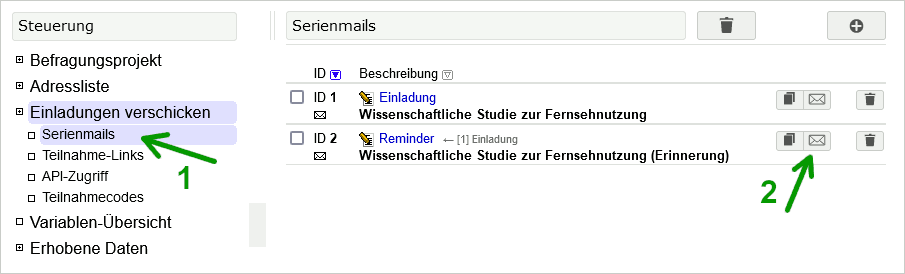
With this function, you can either send the mailing directly or schedule the dispatch for a later point in time (randomized, if necessary). You can set whether the mailing shall only be sent to certain addressees (specified by email address) or to certain subgroups. In addition, for follow-up mails (reminders and the like) you can specify which recipients of the original invitation shall receive the follow-up mail.
After selecting the target group, you have to decide whether the mailing shall be sent immediately or whether the server shall send it automatically at a defined point in time. The latter allows a convenient preparation of invitation and reminder mails – at the actual time of the dispatch, you do not have to take care of anything anymore.
Important: For reminder mails, as a matter of principle, only those addressees receive a mail who have also received the original email to which the reminder refers. Depending on which further restrictions you set, it is only a subset of these addressees.
Important: If you send the mailing immediately, you may not see anything on the screen at first. Please be patient for up to 2 minutes.
Resuming Interviews
If the mailing function or links with individual access codes are used, SoSci Survey “recognizes” the respondent. If a respondent starts the survey, closes the questionnaire in between, and later clicks the personalized link again, the respondent can continue the survey at the same point.
In practice, however, there is a problem with this function: Some respondents would like to take a look at the questionnaire first (e.g., click through it without giving answers) and only fill it out later. If SoSci Survey always continued the survey, these respondents would only see the last page “Thank you for your participation” the second time.
Therefore, SoSci Survey checks at the beginning whether the respondent answered any questions at all last time. If the respondent left more than 50% of the questions asked (not of all questions!) unanswered, the questionnaire starts on the first page. If the respondent answered at least half of the questions asked, the survey is continued directly.
You can adjust the threshold for resuming incomplete interviews in the settings of the questionnaire (Compose Questionnaire → tab “Settings”). A value of 0% disables the restart completely. However, please note that respondents may then no longer be able to fill out the questionnaire if they initially just wanted to take a look at it.
Individual Sending Times
Sometimes a mailing shall not be sent to all address entries at the same time. For individually controlling the dispatch of mailings, you can use the following functions in SoSci Survey:
- The PHP function
mailSchedule()allows preparing the dispatch of a mailing directly in the ongoing interview.- This way, a person can, for example, be invited to a second questionnaire one week after filling out the first questionnaire, see Multi-Wave Surveys with Self-Recruited Respondents.
- This procedure is also well suited for scheduling a larger number of mailings for a diary study. The PHP function
strtotime()allows a very flexible specification of the sending time, e.g.,strtotime('next monday +1 day 13:30:00')
- For the Experience Sampling Method (ESM) or the Mobile Experience Sampling Method (MESM), a period can be specified when sending mailings (which can also be text messages, although sending SMS is subject to a charge), within which the dispatch shall take place at a random point in time. You will find this option when selecting the point in time in the regular dispatch of a mailing.
- Predefined sending schedules can be imported as a table in CSV format: Import Sending Times
Managing the Mailing List
In the menu item Invitation Mailings → List of Contacts, in the tab Panel Recipients, you can see not only the imported email addresses but also the participation status of the respective addressees. The participation status is stored separately for each mailing – to display it, select the corresponding mailing for Display participation status for.
If you click the edit symbol ( ) of an entry, you can edit the entry, and below you see a list of all mailings that were sent to the respondent (incl. participation status). It is not displayed when the respondent opened the questionnaire, because this would allow a unique assignment to a record and thus endanger the anonymity.
For cleaning up the mailing list (e.g., deleting a subgroup, duplicate addresses, etc.), you will find some useful functions in the tab Manage Addresses.
Faulty Email Addresses
If an email address is not (or no longer) valid, SoSci Survey receives a corresponding error message during the dispatch – usually within 15 minutes, but in individual cases up to 2 days may pass before the error message arrives. The program checks which address the message refers to and marks the corresponding entry as faulty: A red/orange flashing symbol appears as participation status, and the entry is highlighted in red in the list.
Faulty addresses do not receive mailings in future dispatches either – unless you reset the error status. To do so, edit the entry () and click the corresponding button.
If you know the correct address of the respondent, you can either enter it directly () or use the tab Update Addresses. After the change, the error status is reset automatically.
If you now want to send the mailing again to the corrected addressee(s), simply start the dispatch of the original mailing again. The mailing is automatically sent only to those addressees who have not received the email yet (see below).
Adding Addresses Later
You can also add addresses to the mailing list later. As a matter of principle, a mailing is delivered to each addressee only once: This means that you can simply send the mailing again – only the new addressees will receive it.
Reminder Mails
Sending reminder mails (or a second survey wave to which only the respondents from the first wave shall be invited) works as follows:
- Create a new mailing (Invitation Mailings → Mailings → Compose Mailing).
- In the tab Reminder/follow up, select the original invitation for Reminder/follow up for.
Important: Always select the original invitation, even if you send several reminder mails. If a respondent clicks through to the questionnaire in a reminder mail, the participation status is also entered for the original mail. - For Type of follow-up, select “Reminder or Continual”.
- Adjust the content of the mailing in the tab Content as needed. The text must (as in the original mailing) contain a placeholder
%link%for the personalized participation link. - At the bottom of the mailing, or after saving the new mailing (Close), you can use Sending the Mailing to Prepare new Sending and specify there under Participation status who shall receive the reminder mail.
You can create a reminder mail in advance and schedule the dispatch for a later point in time. The participation status, which decides whether the mail is sent or not, is only determined immediately before the reminder mail is sent.
As a matter of principle, a reminder mail is only sent to those respondents who have also received the original invitation. Depending on the setting for the Participation status, only some of these addressees receive the reminder.
Important: Each mailing is delivered to each addressee only once. So you cannot send the same reminder several times to the same addressee. If you would like to remind the respondents several times, create a new mailing for each reminder round.
Keywords: reminder mail, follow-up, reminder, remind, participation status, second survey wave, thank-you mail
File Attachments
A mailing can also contain images or file attachments. This way, for example, a logo can be displayed directly in the (HTML) mail.
First upload the files under Images and Media Files. Select Use protected filing if you do not want the files to be accessible via the internet.
Then open the mailing for editing and select the tab Images/Attachments there. In the dropdown selection under Add images or documents, select the first file you would like to attach. Further selection fields appear, with which you can select further files as needed. After saving the mailing ( ), the attachments are listed in a table.
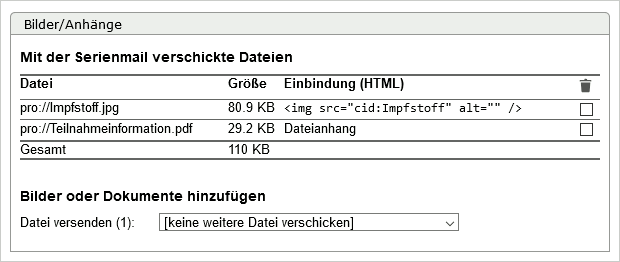
Images and documents are treated differently. Documents are included as regular file attachments; images are embedded in the email but are not displayed as attachments by default. Instead, an <img> tag appears in the table, with which the image can be used as an image directly in the HTML part of the mailing.
To delete file attachments, check the box in the column with the trash can symbol and then save the mailing.
Multi-Wave Surveys
During the import, each email address is assigned an individual ID (person ID), which later appears as SERIAL in the dataset (but only if the privacy mode for the addresses is not “anonymous” or “make anonymous”). This ID is kept until the email address is deleted from the project.
Multi-wave surveys can therefore be implemented quite easily: For each survey wave, a mailing is created and sent. If the email addresses were imported without a person ID, the respondents remain pseudonymous, and the records can still be matched by means of the person ID (variable SERIAL).
If only those addressees shall be contacted in a later survey wave who also participated in the previous wave, you can use the follow-up mail function. To do so, specify for Reminder/follow up for when creating the mailing which previous mailing the new invitation refers to. In the function Sending the Mailing, you can then specify that only those addressees shall receive the email who followed the other invitation.