
- de
- en
Table of Contents
Single Sign-On (SSO)
An add-on module is available for SoSci Survey that allows login via OpenID Connect (OIDC), Shibboleth/SAML2, or LDAP. The following explains the preparation for using this add-on module.
Preparation SoSci Survey
Update your installation of SoSci Survey to program version 3.2.37 or later (download portal).
After ordering the SSO module, you can download the module “Single Sign-On (SSO)” in the download portal. The ZIP file contains two directories (modules and plugins). Copy these directories including their content into your installation of SoSci Survey. Directories of the same name already exist there; their content is supplemented.
Open the Server Settings of SoSci Survey.
- First enter your license key in the tab Server for Software license server and save, so that SoSci Survey retrieves the updated license including the SSO module.
- Under Server → Software license server (bottom), please enter your license key for SoSci Survey and retrieve the current license for SoSci Survey with SSO support by clicking OK.
- Under Plugins → Activate components (bottom), “Single Sign On (SSO)” should appear in the list. Click the button Activate components (bottom); afterwards, a check mark should be displayed in front of the module.
- Under Registration, now select the option “Button for SSO login below the login password” for Single sign-on mode.
OpenID Connect (OIDC)
- Preparations
- Note down a freely selectable abbreviation for the SSO connection or for your institution, preferably without umlauts and without spaces. Upper/lower case must be observed everywhere. An abbreviation that only uses lowercase letters avoids typos.
- Note down the SSO URL, which is the URL of your SoSci Survey installation with
/admin/?sso=institutionappended, using the abbreviation noted above aftersso=(here in the exampleinstitution). - Find out the metadata URL of your IdP. This is a URL with
/.well-known/openid-configuration, for examplehttps://accounts.example.com/.well-known/openid-configuration. - Note down the URL of your IdP, which is also the provider ID; it is the part of the metadata URL before the
/.well-known, i.e.,https://accounts.example.comin the example above.
- Create a new OIDC entry for SoSci Survey on your identity provider (IdP). The redirect URI is the SSO URL (see point 1). Note down the application ID (client ID) and the password.
- Create a copy of the file
plugins/SSO/SSO_OIDC_Example.phpand give the copy a unique name, e.g.,plugins/SSO/SSO_OurInstitution.php(see below).- In the file, change the class name so that it matches the file name, e.g.,
SSO_OurInstitution. - Enter the information of your SoSci Survey entry in the IdP configuration (see 1 and 2) in the following lines.
- In the file
system/config.phpof your SoSci Survey installation, add an entry for the new login option before the?>(see below). As the key (institutionin the example), use the abbreviation chosen above. - To test the login, open the SSO URL in your browser.
- If the login worked, log out again, log in with an administrator account, and adjust the setting Single sign-on mode in the Server Settings in the tab Single Sign-On as needed.
- Important: Your IdP provides its own metadata under a
.well-knownURL. For the field$providerURL, enter the part that comes directly before the/.well-known. - Note: If the login does not work, please check the content of the file
system/logfiles/errorlog.txt.
- SSO_OurInstitution.php
class SSO_OurInstitution extends SSO4OIDCHandler
{
    protected $providerURL = 'https://accounts.example.com';
    protected $clientID = '123-456-789';
    protected $clientSecret = 'secret key';
    protected $certPath = null;

    ...
- config.php
$GLOBALS['oFb']['sso']['idp']['institution'] = [
    // Label to display on the login form (may be an array with keys 'de' and 'en')
    'label' => 'OpenID Connect Login',
    // The PHP file and class to be used for decoding the response
    'handler.file' => 's2components/SSO/SSO_OurInstitution.php',
    'handler.class' => 's2components\SSO\SSO_OurInstitution'
];
Error Messages
- On login → The redirect URI 'https://.../admin/?sso=institution' specified in the request does not match the redirect URIs configured for the application …
Check the SoSci Survey entry on the IdP and change the “Redirect URI” there. errorlog.txt→ PHP Fatal error: Uncaught Jumbojett\OpenIDConnectClientException: The provider authorization_endpoint could not be fetched. Make sure your provider has a well known configuration available.
The value for$providerURLis not correct; check the.well-knownURL (see above).
SAML2 via SimpleSAMLphp
For Shibboleth-Connection SoSci Survey accesses the software SimpleSAMLphp which must be installed on the same server as SoSci Survey.
SimpleSAMLphp is available as a package for several linux distributions and can be downloaded and copied to the server. In the second case, configuration should be saved outside simplesamlphp-directory, to simplify updates.
Installing SimpleSAMLphp is not trivial. A step-by-step instruction is provided here: SimpleSAMLphp Documentation.
After installing and configuring SimpleSAMLphp you can access the software via you own URL. Under Federation → show meta-data you find an URL to give to your Identity-Provider (IdP) so they can unlock your SoSci Survey (Service Provider, SP) for Campus-Login. At the IdP a “transient connection” must be configured, (not a persistant connection).
Please inform IdP, that you need the following user attributes:
- PersistentID (e.g.
eduPersonTargetedId) - First name
- Second name
- E-mail adress
For the interaction of SimpleSAMLphp and SoSci Survey to function, please ad the session-path of SoSci Survey in the config.php of SimpleSAMLphp. The exact path depends on your installation.
'session.phpsession.savepath' => '/var/www/s2survey/html/system/session'
Also please adapt the session.cookie.secure configuration for otherwise authentification will not work when using HTTPS/SSL (which of course needs to be supported by your server) in the latest version of SimpleSAML, Chrome and Edge.
'session.cookie.secure' => true
Make sure that under Federation the funtion Metarefresh: fetch metadata is working and that the Cronjon for regular retrieval of meta-data is active (SimpleSAMLphp: Cron).
If login works test if configured sources of authentification works under authentification → and check if the attributes are shown as listed above (first name, second name, e-mail adress and and ID), everything is ready for the connection of SoSci Survey.
How to adapt SoSci Survey Configuration
Now please edit the file system/config.php in your SoSci Survey directory. Please add the following content before the end (?>):
// ***** Single Sign On (SSO) *****
// Absolute path to the SimpleSAMLPHP directory
$GLOBALS['oFb']['sso']['simplesaml'] = '/var/www/shibboleth/simplesaml/';
// ID configured for the login in (see SimpleSAMLPHP -> config/authsources.php)
$GLOBALS['oFb']['sso']['sp'] = 'SoSciSurvey';
// Information about the Identity Provider (IdP)
$GLOBALS['oFb']['sso']['idp']['setup'] = [
    'label' => 'SSO Setup',
    // For the IDP URL see SimpleSAMLPHP -> config/authsources.php
    'saml:idp' => 'https://YOUR-IDP-URL-HERE/idp/shibboleth',
    'handler.file' => 'plugins/SSO/SSOSetup.php',
    'handler.class' => 's2survey\account\SSOSetup'
];
What you need to adjust is…
- the path where SoSci Survey finds your installation of SimpleSAMLphp (
'simplesaml'). - the internal identifier which you used in
config/authsources.phpfor SoSci Survey ('sp', Standard:default-sp) - the URL of your Identity Provider (
'saml:idp') which you find in the configuation of SimpleSAMLphp as attribute'idp'.
Please leave all other settings unchanged, for testing the general connection and transmitted keys for the data, first.
When opening SoSci Survey on your server, under the regular sign-in button a button SSO Setup should show. Clicking on it will bring you to your identity provider. After logging in with your Campus-Login you should see an overview “Shibboleth Data”. Please save this overview and send it via e-mail or encrypted via s2survey.net/transfer to SoSci Survey. On this basis we can generate an adapted SSO module for you.
Further we need the following information from you:
- How long shall SSO user accounts (including projects) be saved after the last login to SoSci Survey? We recommend 2 years.
- Shall existing user accounts on your server be changed to SSO-accounts, when first logging in via SSO? Accounts are identified by the e-mail-adress.
Finalizing the configuration
Node
You recieve the adapted SSO-Modul for your server via e-mail. Please save this PHP-file under plugins/SSO/ in the SoSci directory.
This line in the file contains a distinct identifier for your SSO (example in the example below). This identifier is used by SoSci Survey, to attribute user accounts to the IdP.
$info = new SSOAccountInfo('example', $userID);
You can adapt this identifier if you want. Later changes are not possible. Please note down the identifier, you will need it in the next step.
Configuration
Still some changes to the file system/config.php are required. You already added the part for SSO-Setup. In the part $GLOBALS['oFb']['sso']['idp']['setup'] the following needs to be adapted:
- The entry contains a key different from
setup– please use the same key that was used in the fileplugins/SSO/. - The text of the button (
'label') can be adjusted freely. SSOSetupneeds to be replaced with the correct name in two places. The correct name is the file name of the SSO-PHP file, you received via e-mail.SSOExamplein the following demonstration.
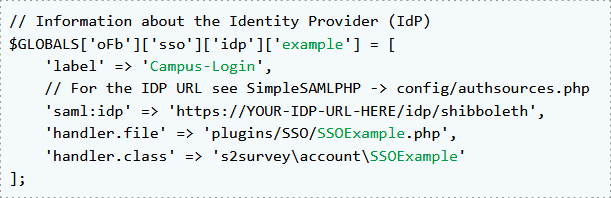
The 'label' can be choosen freely. It is a text that can can be displayed on the button of the login-page. It is possible to use an english and a german text.
    'label' => [
        'de' => 'Campus-Login Unsere Hochschule',
        'en' => 'Campus Login Our Univerity'
    ],
Configuration
You can choose whether users have both optins for logging in the SoSci Survey Server-Settings under registration → Single-Sign-On mode. If you also have users with local user accounts we recommend activating to show both options.
Via the link /admin/?sso=sosci the login page can be accessed at any time, and you can log in for example with your admin user account.
It is useful to deactivate the registration of new local user accounts. This can be done at registration under registration.
LDAP
Configuration of a LDAP-Login also requires an adapted configuration in /plugins/SSO (see below an example for a configuration file).
Also edit the file system/config.php in your SoSci Survey directory. Add the following content before (?>), and adjust the settings in your infrastructure.
$GLOBALS['oFb']['sso']['idp']['example'] = [
    // Label to display on the login form (may be an array with keys 'de' and 'en')
    'label' => 'LDAP Login',
    // The PHP file and class to be used for decoding the response
    'handler.file' => 'plugins/SSO/SSO_LDAP_Example.php',
    'handler.class' => 's2survey\account\SSO_LDAP_Example',
    // The LDAP server to use
    'ldap.host' => 'ldaps://ads.example.com',
    // The DN base for users
    'ldap.base' => 'OU=Users,OU=LM,OU=IAM,DC=ads,DC=example,DC=com',
    // If we need a separate user for the lookup, specify a full distuingished name (DN) here and the password
    // 'ldap.user' => 'CN=specuser,OU=Users,OU=LM,OU=IAM,DC=ads,DC=example,DC=com',
    // 'ldap.pass' => 'PASSWORD_IN_PLAIN_TEXT'
];
Advanced settings
The connection between the identity provider (via SAML or LDAP) and the user administration of SoSci Survey is made via a class that inherits either SSO4SAML2Handler or SSO4LDAPHandler.
A central method for both SSO connections is decodeData(). It receives the data from SAML or LDAP and defines the name and e-mail address for the user account as well as its authorizations. The data for the user account and the authorizations are written to an instance of the SSOAccountInfo class.
In the Server-Settings in the Rights management you can set general authorizations for all users of the server. In addition, the SSO connection allows differentiated authorizations to be assigned depending on the transmitted attributes.
The assignment of authorizations for uploading media files and sending serial mails in a SAML connection to employees (but not to students) could look like this:
Configuration File for SSO via LDAP
protected function decodeData($authority, ?\SAML2\XML\saml\NameID $nameID, array $attributes): SSOAccountInfo
{
	$info = new SSOAccountInfo('uniname', $cn);

	...

	// eduPersonScopedAffiliation
	if (
		array_key_exists('eduPersonScopedAffiliation', $attributes) &&
		is_array($attributes['eduPersonScopedAffiliation']) &&
		in_array('staff@example.com', $attributes['eduPersonScopedAffiliation'])
	) {
		$info->addFeature(Account::FEATURE_UPLOAD_MEDIA);
		$info->addFeature(Account::FEATURE_MAILS);
	}

	...
}
In an LDAP environment, the group membership would be checked.
protected function decodeData(array $data): SSOAccountInfo
{
	$cn = $this->getFirstValue($data, 'cn');
	$dn = $this->getFirstValue($data, 'dn');
	$info = new SSOAccountInfo('uniname', $cn);

	...

	if ($this->memberOf($dn, 'CN=STAFF,OU=F,OU=Groups,OU=UNINETZ,DC=ad,DC=example,DC=com')) {
		$info->addFeature(Account::FEATURE_UPLOAD_MEDIA);
		$info->addFeature(Account::FEATURE_MAILS);
	}

	...
}
The following authorizations can be granted.
Account::FEATURE_PUBLISH | Publish the questionnaire (enter/change the survey period) |
Account::FEATURE_LIBERAL_SAP | Lift possible restrictions on the duration of the survey period |
Account::FEATURE_UPLOAD_IMAGES | Upload images |
Account::FEATURE_UPLOAD_MEDIA | Upload media files |
Account::FEATURE_MAILS | Send mailings |
Account::FEATURE_OVERWRITE_PRESETS | Lift server defaults (in particular, use individual sender addresses and disclaimers for mailings) |
Account::FEATURE_SEND_SMS | Also send SMS by means of the mailing function (provided that an SMS gateway is configured for the server) |
Account::FEATURE_ALPHA | Display any features in a program version that are still in the development/test phase (not recommended) |
- SSO_LDAP_Example.php
<?php
namespace s2components\SSO;

use s2survey\account\Account;
use s2survey\account\SSO4LDAPHandler;
use s2survey\account\SSOAccountInfo;

class SSO_LDAP_Example extends SSO4LDAPHandler
{

    /**
     * Create the distuingished name (DN) from a username as entered in the form.
     * This function is used if there is no @ in the username.
     * Ignore this function, if we need to look up the DN by using a separate user.
     */
    protected function getDNName(string $username)
    {
        return 'CN='.$username.',OU=Users,OU=LM,OU=IAM,DC=ads,DC=example,DC=com';
    }

    /**
     * Copy data from LDAP into the account
     * and eventually specify additonal authorisations.
     */
    protected function decodeData(array $data): SSOAccountInfo
    {
        $cn = $this->getFirstValue($data, 'cn');
        $dn = $this->getFirstValue($data, 'dn');

        // This must match the ID in the config.php
        $info = new SSOAccountInfo('example', $cn);

        // Set validity
        $info->expire = strtotime('+2 years');

        // Set name and email address
        $info->nameFirst = $this->getFirstValue($data, 'givenname');
        $info->nameLast = $this->getFirstValue($data, 'sn');
        $info->email = $this->getFirstValue($data, 'mail');

        // Eventually allow server administration
        if ($this->memberOf($dn, 'CN=SoSci_Admins,OU=F,OU=Groups,OU=LM,OU=IAM,DC=ads,DC=example,DC=com')) {
            $info->authorized = true;
            $info->addServerAuth(Account::SERVER_ADMIN);
        } else {
            // Specify survey usage auth
            $info->authorized = $this->memberOf($dn, 'CN=SoSci_Users,OU=F,OU=Groups,OU=LM,OU=IAM,DC=ads,DC=example,DC=com');
        }

        return $info;
    }

    /**
     * Tell whether to convert existing account with the same email address to SSO accounts.
     * @return boolean
     */
    public function getConvertAccount()
    {
        return true;
    }

}
Troubleshooting
If SSO-Login does not work, please check the SoSci Survey Errorlog unter /system/logfiles/errorlog.txt first and the logfile of SimpleSAMLphp (e.g. /var/log/syslog).

