Inhaltsverzeichnis
Formatting text with HTML
Insert HTML code anywhere in the questionnaire to format the text at that point. HTML (HyperText Markup Language) is the standard format for information on the Internet. Don't worry - you do not need to learn HTML in full to add text or an image to the questionnaire. However, understanding at least the basics is very helpful for applying simple formatting.
Tip: If you initially find writing HTML code a little difficult, an online HTML editor such as HTML-Online.com can be helpful.
HTML code contains, on the one hand, the actual content - for example, what you are reading here right now - and, on the other hand, abbreviations that describe how the information should appear. Formatting is achieved using so-called tags. In HTML, tags are always written inside angle brackets. In the following example, the tags are highlighted:
<h1>Hello world</h1>
<p>How are you, world?</p>
Translated into ordinary language, the example simply means:
- Write “Hello world” as a first-level (1) heading (“header”).
- Below it, write the paragraph (“paragraph”) “How are you, world?”
The result would look like this:

In general, every HTML tag is closed. The <p> tag therefore marks the beginning of the paragraph, while the closing tag </p> marks its end. The only relevant exceptions here are the <br> and <img> tags. These mark a line break (“break”) and an image (“image”), respectively.
Tip: The <br> tag is very helpful if the labels (verbal anchors) in a scale do not wrap optimally.
<p>Here should be a<br>line break</p>
Result of the HTML code above

As the following example shows, tags can also include additional attributes. For example, the <img> tag must specify which image it should display (src, “source”) and which text (alt, “alternative”) it should display if the image cannot be shown.
<img src="logo.gif" alt="Logo">
Result of the example HTML above

The most important HTML tags
In addition to texts that you output using html(), you can also format question titles, explanations, and scale labels using HTML tags. Here is an overview of some important tags:
| Tag | Meaning | Example | Result |
|---|---|---|---|
| <p> | Paragraph | <p>Paragraph 1</p><p>Paragraph 2</p> |  |
| <br> | Line break | this line will break<br>here |  |
| <strong> | Emphasis (usually bold) | Text, now<strong>emphasised</strong> | Text, now emphasised |
| <b> | Bold | Text, partially <b>bold</b>. | Text, partially bold. |
| <i> | Italic | Click on <i>not at all</i>. | Click on not at all. |
| <u> | Underlined | Do <u>not</u> click here! | Do not click here! |
| <small> | Make text smaller | This is a sentence<br> |  |
| <h1> | First-level heading | <h1>A. Main part</h1> |  |
| <h2> | Second-level heading | <h2>A.1. Definition</h2> |  |
| <a> | Link to a website | <a href="https://www.soscisurvey.de" target="_blank">SoSciSurvey</a> | SoSciSurvey |
| <span> | Text section to be formatted using CSS | This is <span style="color: #FF0000">red Text</span> |  |
| <div> | Text block to be formatted using CSS | <div style="border: 2px solid #FF0000; background-color: #FFCCCC">Text in a red box</div> |  |
Tags are primarily used to mark up the content and structure of texts (e.g. headings and content) rather than for visual design. Like the <div> tag, the <span> tag is an empty container that only becomes a design element through so-called CSS styles (Cascading Style Sheets). If required, SelfHTML provides detailed information about these options.
If you need coloured text, you only have to replace the colour code (in the example #FF0000, meaning: 255=FF red, 0 green, 0 blue) with the code of the desired colour. The colour calculator can help you with this. You can find it when editing a layout (under Questionnaire Layout).
Even “standard” tags such as <p> or <h1> do not have a fixed appearance. In SoSci Survey, the font or font size, for example, is defined centrally in the questionnaire using CSS. Depending on the layout, a heading may therefore appear larger in one case and smaller in another.
Example of emphasised text
<h1>Demonstration of HTML-Tags</h1>
<!-- Highlighting -->
<p>This paragraph contains a <strong>highlighted</strong> word.</p>
<!-- Color -->
<p>This paragraph contains words in several colors: a<span style="color: #00FF00">light</span>,
  <span style="color: #009900">medium</span> and a
  <span style="color: #006600">darker green</span></p>
<p>
<!-- Size, if a heading is not sufficient -->
<p>This is a <span style="font-size: 32px;">large</span> word,</p>
<div style="font-size: 24px; color: #FF0000; font-weight: bold;">
  and a large, bold, red text.
</div>
<div style="margin-top: 32px; padding: 20px; border: 1px solid #FF9900; ">
  <p>Using div's, you can define the margins to the outside of the div (e.g. on the top of the div) and borders</p>
  <p>Using padding, you can define the margins on the inside of the div (e.g. between the border and the text. Here: all around</p>
</div>
Demonstration of the HTML code example above

Tip: If a text in the questionnaire is formatted in bold by default, but you want it not to be bold in a particular instance, use <span style="font-weight: normal">Text</span>. If you never want the respective element to be bold, you should adjust the layout accordingly.
HTML entities
As described above, tags are marked using angle brackets. Sometimes, however, angle brackets are needed as part of the content itself. For this purpose, there are so-called HTML entities: < (less than, <) und > (greater than, >):
| Example | Result |
|---|---|
| <p>C<D and C>E</p> | CE |
| <p>C<D and C>E</p> | C<D and C>E |
Other HTML entities include & for the ampersand symbol (&) and " for the quotation mark (“). Other useful entities such as • (•) are listed in SelfHTML.
Inserting links
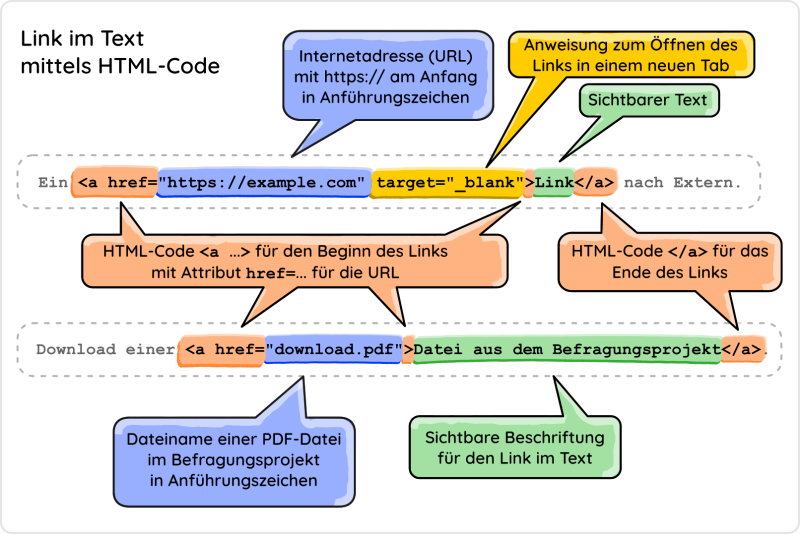
With the HTML code <a href="Link">Label</a>, you can insert a link (hyperlink) into a text. A link usually points…
- to a website or
- to a document (for example, a PDF) that is to be downloaded or opened.
The link can either be
- a complete Internet address (URL), normally beginning with
https:// - or the filename of a file that you have uploaded to the survey project.
Only the label is displayed in the text, so <a href="https://www.soscisurvey.de">SoSci Survey</a>, for example, becomes SoSci Survey.
Within the <a> tag, you can insert the attribute target="_blank", so that the link opens in a new browser tab. This is useful whenever you want respondents to be able to continue the interview.
An alternative to Wiki links are Wiki Links.
Example: privacy policy
You have uploaded a file privacy-policy.pdf under Image and Media Files in your survey project and would like to link to this PDF in the welcome text.
Important: The text must use the “HTML code” display mode. If you use the “simple text” display mode, please refer to Wiki Links.
Insert the link into the HTML text as follows.
Details can be found in our <a href="privacy-policy.pdf" target="_blank">privacy policy</a>.
Important: The filename must be written exactly as the file is named after uploading. Capitalisation must also be correct (including in the file extension .pdf).